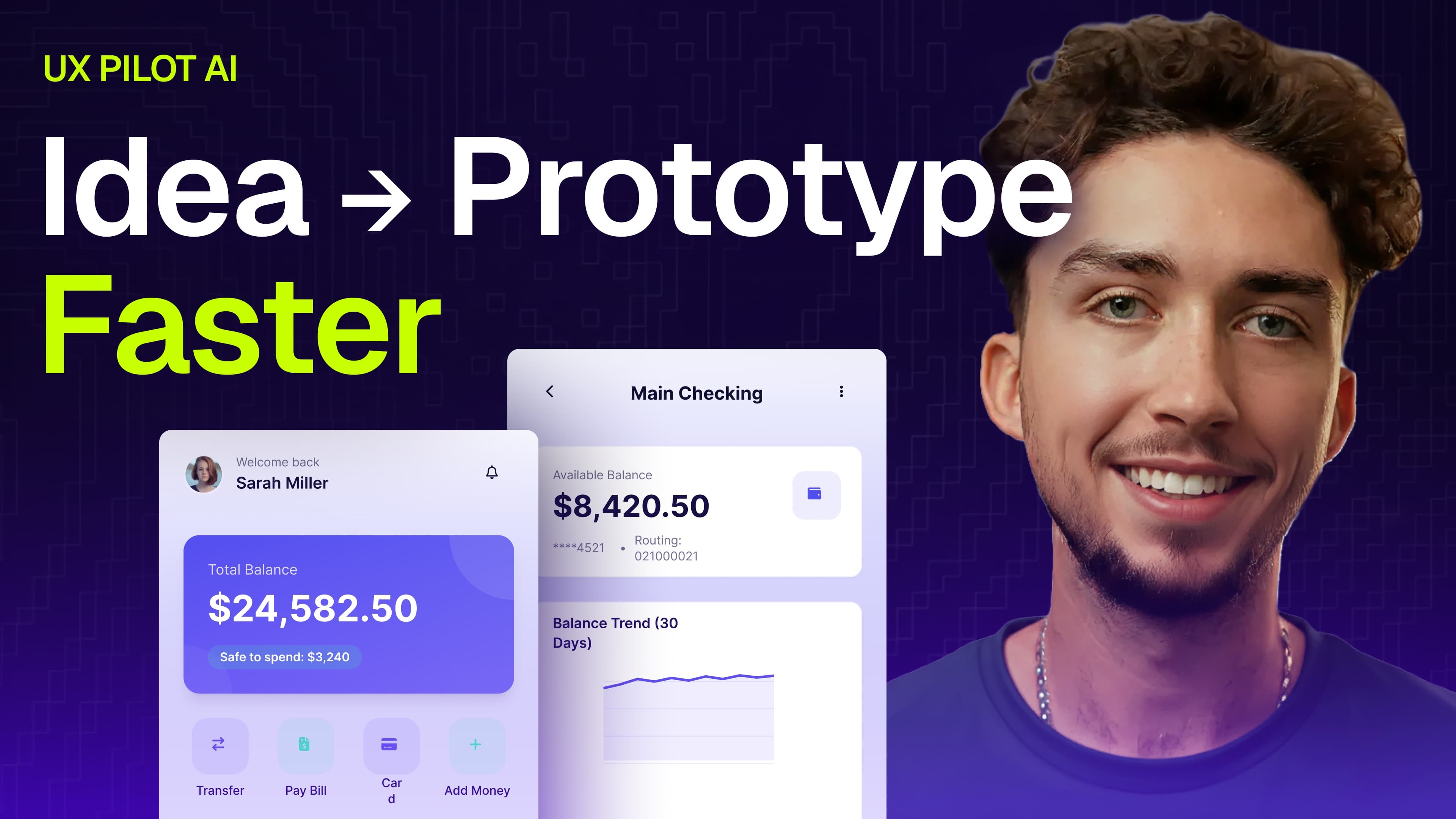
I've tried a lot of AI tools to supplement my design process. UX Pilot is one that's genuinely stood out — not just for one feature, but for how many capable, designer-focused tools it packs into a single platform. It takes you from idea to prototype in minutes, and in this post I want to walk you through exactly how that works.
Getting Started
When you open UX Pilot, you're dropped into your dashboard. Hit New File to kick things off. You can add context about your designs right here, but I prefer to wait until I'm inside the file before giving instructions.
Head to the Studio tab — this is where your first design iteration comes to life. You'll choose between Wireframe or Hi-fi depending on where you are in your process. You can always convert a wireframe to hi-fi later, but for this walkthrough I'm going straight to hi-fi.
Since I'm designing a mobile-first app, I'll set the screen size to Mobile before writing my prompt.
Writing Your Prompt
One of the things I appreciate about UX Pilot is that it can generate an entire flow — multiple screens — not just a single screen. If you have design inspiration or reference documents you want it to use as context, you can attach those directly to your prompt. And if you're not sure where to start, Prompt Examples gives you ideas to work from, while Enhance Prompt adds more detail to better guide the AI.
For my demo, I used this prompt:
"Design a modern mobile personal banking app for everyday consumers. Target users are working adults who use the app as their primary bank. Core goals: show balances and recent activity instantly, enable fast transfers and payments, reduce financial anxiety, feel premium and regulated — not playful."
Because I'm generating a full flow, I need to specify what screens to include. You can do this manually, or hit Autoflow and let UX Pilot decide. I used Autoflow, and it built out a detailed prompt for each screen automatically.
Using Your Own Design System
Under Advanced Settings, there's a feature that's a real game-changer for designers working within existing component libraries: design system integration via the Figma plugin.
The process is simple. Open your Figma design system and the UX Pilot plugin, go to the Design Systems tab, start a new collection, and import the components you want UX Pilot to be aware of. Once that's done, you can regenerate any screen using your own components by going to Generate → Variations and switching the model to your imported design system.
The result is a new screen with the same content, but styled using your actual components.
Customizing the Theme
You don't need to import a design system to get well-styled results. The Theme Editor lets you fine-tune your color palette, border radius, effect styles, and fonts. This is especially useful early in concepting when you want to explore multiple visual directions before committing to one.
Instead of regenerating screens from scratch every time something feels off, you adjust the theme once and reapply it across the entire project. It makes exploring different brand directions — clean and professional versus friendly and playful — fast and low-effort.
Editing Your Screens
Once UX Pilot generates your screens, you have a few ways to refine them:
Global Edit is what I reach for most — it regenerates the full screen based on a prompt you write, like "rearrange this screen's sections for better hierarchy and less clutter." It's great for broad directional changes.
Section Edit gives you more granular control over a specific area of the screen, while Manual Edit opens an intuitive editing view similar to Figma's UI for precise adjustments.
If you just want to add content without changing what's already there, Add New Section is the quickest path.
Generating a Prototype
Once you're happy with your screens, building a clickable prototype is a single step. Hit Cmd/Ctrl + A, open the dropdown, and click Generate Prototype.
Just like that, you have a working prototype you can tap through to test core flows, validate navigation, and check whether key tasks are intuitive. This is especially powerful for designers and PMs who need to walk into stakeholder meetings with something concrete. Instead of presenting static screens, you can demo real user journeys and answer questions about how the product actually works in practice. That level of interactivity builds credibility and helps teams align faster.
I've spent hours prototyping a single design flow in Figma. UX Pilot turns that entire process into a single click — which gives you back time to focus on refining the experience rather than drawing connections between frames.
Copying Directly into Figma
Since Figma is still part of my workflow, one of my favorite UX Pilot features is the ability to copy a design and paste it directly into Figma. And it doesn't paste a screenshot — it pastes a fully structured frame with auto-layout intact, making it easy to iterate on without starting from scratch.
Responsive Layouts, Automatically
In UX Pilot, you don't need to manually create different layouts for different screen sizes. Select a screen, click Generate → Mobile Version (or Desktop if you started mobile), and UX Pilot generates the alternate layout automatically. Desktop and mobile side-by-side, ready to hand off to developers.
Worth Trying
UX Pilot brings together several AI-powered features that meaningfully accelerate early design work — from generating multi-screen flows and building prototypes to integrating your existing design system and exploring visual directions through the Theme Editor. It's not a replacement for thoughtful design, but it removes a lot of the friction that slows the process down.
You can try it for free using the link below.