Building a client portal with role-based access, file uploads, email notifications, and a real PostgreSQL database used to mean weeks of scaffolding — or a hefty freelance bill. I decided to test how far an AI app builder called Anything could take me, starting from a blank project and ending with something I'd actually feel comfortable putting in front of real users. What surprised me wasn't just the speed, it was how much of the hard stuff — bcrypt password hashing, scoped API responses per role, cloud file storage — happened without me ever touching a config file.
Start With a Plan, Not a Prompt
Before writing a single line of anything (or asking the agent to), I opened Anything's Plan mode — a free, credit-less mode where you talk through your data model with the agent before committing to a build. I told it I needed a users table, a projects table with name, description, status, deadline, and assigned freelancer fields, a deliverables table for uploaded files linked to projects, and a payments table tracking amount, status, and date per project.
The agent came back with a refined schema, flagging relationships I hadn't fully thought through. Think of it as a rubber duck that actually pushes back. Once I was happy with the six-step plan it generated, I hit approve — and that's when the actual building started.

From Blank Project to Live Database in Under a Minute
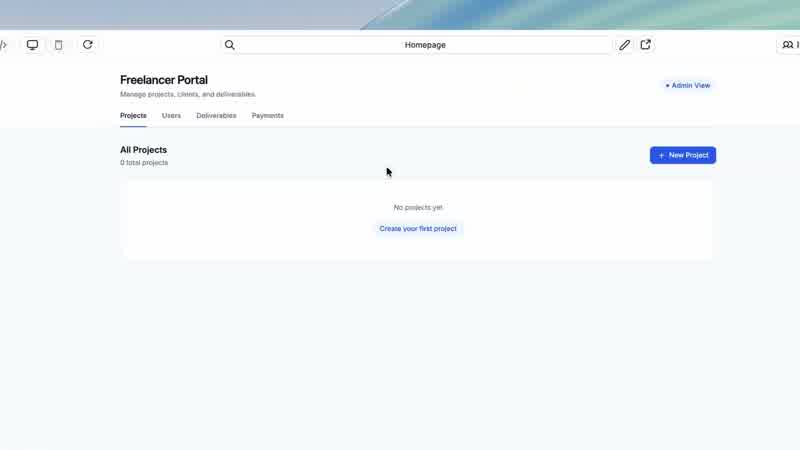
After approving the plan, Anything spun up the database tables and API endpoints automatically. I didn't touch SQL. When it asked if I wanted to build a UI to visualize and manage the data, I said yes — and within a minute I had an actual running app with a projects view, a users table, deliverables, and payments.
To make the UI useful immediately, I asked the agent to populate the dev databases with placeholder data, and watched rows appear in real time. One thing worth knowing: every project in Anything gets two separate environments — development and production. Dev is your sandbox; when you publish, the table *structure* pushes to production but the test data stays behind. That means all the placeholder data I generated never bleeds into real user accounts.
I also discovered mid-session that I wanted a notes field on the projects table. Instead of hunting through a schema editor or writing an ALTER TABLE statement, I just told the agent: *add a notes field to the projects database.* The column appeared. That kind of thing saves a lot of context-switching.
"Add Sign Up and Log In" Is a Complete Prompt
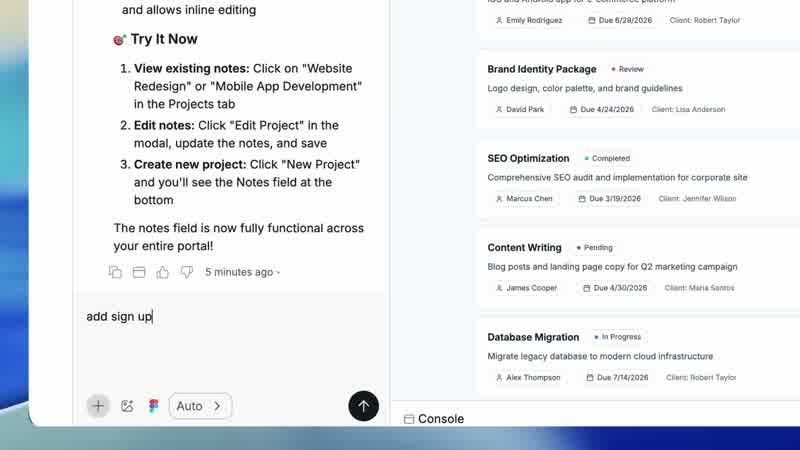
This was the moment that made me sit up. My entire auth prompt was: *add sign up and log in to this app.* Four words (plus two). The agent added three pages — sign up, sign in, sign out — redirected the dashboard to a landing page for unauthenticated users, and created four new database tables: accounts, sessions, users, and verification_tokens.
Under the hood, passwords are hashed with bcrypt and sessions are tracked via secure cookies. You don't configure any of this — it just works that way. When I noticed that a wrong password silently refreshed the page with no error, I asked the agent to *show an error banner upon incorrect email and password combination.* One prompt, done.
Anything's project settings also surface OAuth options for Google, X, and Facebook sign-in (you bring your own credentials), with Apple sign-in listed as coming soon. There's also a magic link option for passwordless auth if you ask for it. The flexibility is real — it's not just one opinionated auth setup baked in.
Role-Based Access That Works at Two Levels
The freelancer portal only makes sense if admins and freelancers see completely different things. I gave the agent a single prompt describing both roles in plain English: admins see all projects and freelancers, can assign people, and review uploads; freelancers only see their own assigned projects and can upload deliverables to those.
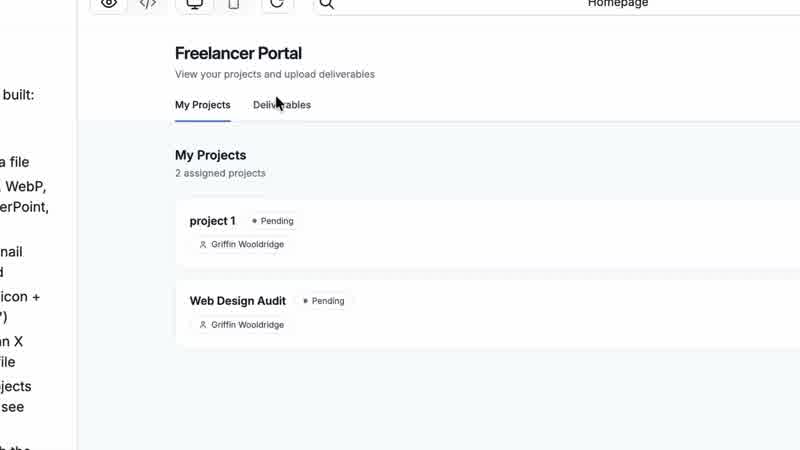
The agent added a role field to the users table, built two separate views, and updated the sign-up flow to let new users choose their role. When I logged in as a freelancer, I saw two tabs — My Projects and Deliverables — scoped to only what was assigned to me. The admin view showed everything, with an admin badge in the nav and full controls across projects, users, deliverables, and payments.
But the more important thing is *where* that scoping happens. It works at two levels simultaneously. At the page level, the server checks your session cookie and role before rendering anything. At the data level, the same API endpoint — say, GET /api/projects — returns all projects for an admin and only your assigned projects for a freelancer. I made this explicit with a follow-up prompt to lock down the backend function, and the agent tightened the logic accordingly. Same URL, different data, no client-side trickery.

Backend Functions: Where the Secret Stuff Lives
Most no-code tools blur or completely hide the line between frontend and backend. Anything surfaces it clearly. Opening the code view shows an API folder where all backend functions live — serverless functions that run on the server, handle sensitive logic, and scale automatically. Each function has its own route visible in the publish menu: /api/deliverables, /api/payments, and so on.
The reason this matters is straightforward: if you put an API key or database credentials in your page code, anyone can open browser dev tools and read it. Backend functions keep that on the server. To demonstrate this, I asked the agent to create a new endpoint at /api/project-stats that returns total project counts, in-progress vs. completed breakdowns, and outstanding payment totals — but only for admins. The agent wrote the function, added the access check, and then offered to wire it into the frontend. I said yes, and the KPI cards appeared at the top of the admin dashboard pulling live from that endpoint.
Functions can run for up to five minutes per request, which opens up longer-running operations — AI processing, bulk exports, chained API calls — that would time out in a typical frontend fetch.

Email Notifications With Resend (and Where Your API Keys Actually Go)
The missing UX piece in most freelancer tools is the moment when someone gets assigned to a project and has no idea. I fixed that with a Resend integration. Anything has Resend as a built-in option, so the prompt was: *when an admin assigns a freelancer to a project, send them an email notification using /Resend, with the project name, description, and deadline.*
The setup requires a Resend account, an API key, and a custom domain (so emails come from *notifications@yourdomain.com* rather than a generic address). Domain verification is a one-time DNS step through whatever registrar you use — Cloudflare, Namecheap, wherever.
The API key goes into Project Settings → Secrets, not into the chat, not into the code. Secrets stored there are available to backend functions but never exposed to the frontend — which is the whole point. I also added a RESEND_FROM_EMAIL secret so the sending address is configurable. After testing by assigning my freelancer account to a new project as admin, the email arrived with the project title, description, and deadline populated correctly.

File Uploads Are Three Things Happening at Once
The deliverables feature looks simple from the UI — drag, drop, done — but the agent actually had to wire three things together: an upload component on the frontend, a backend function that sends the file to cloud storage, and a database write that saves the returned URL to the deliverables table. When I uploaded a file from the freelancer account, I got an inline preview and a download link. Switching to the admin account, the same file showed up confirmed.
Out of the box, supported formats include PNG, JPEG, HEIC, GIF, WebP, SVG, PDF, audio, and video, with a 10MB cap per file. But validation is just a prompt away — I asked it to *show an error if the file is over 5MB and only accept PDF and image files,* and the next upload attempt with an oversized file hit a clear error message.
The more interesting edge case: I could ask it to run GPT-4 Vision on every uploaded image to generate a description and save that alongside the file. The agent would wire the upload event to an AI backend function automatically. That's the kind of integration that could easily eat a day of developer time.
Styling by Reference and Testing With a Real Browser
The fastest way to style an app in Anything isn't writing CSS — it's dropping a URL. I gave it Linear's landing page and said *style the app like this.* Because Anything can fetch and read the URL, it matched the typography, color palette, and spacing from the reference page. One prompt, a few minutes, and the whole app looked substantially different. You can also drop a screenshot into the chat input if you'd rather pull from a specific image. Logos go through Project Settings → Assets, then a follow-up prompt to place them where you want them.
For testing, Anything has a mode called Max that opens your app in a real browser and clicks through it like a human would — filling forms, navigating between pages, checking that data shows up in the right place for the right roles. It's slower and more expensive than standard mode, but it catches things a visual review misses. I ran it on the full freelancer-then-admin flow and watched the sidebar populate in real time with what it was checking. You can run multiple Max instances in parallel for different user flows. If you're putting something in front of real people, it's worth the extra cost.